Geocoding Made Simple
Date
Oct 13, 2020
Category
Projects & Lifestyle

We now live in a fast and visual world, where images speak louder than words. Decision making increasingly relies on data, which comes at us with such overwhelming velocity, and in such volume, that we can’t comprehend it without some layer of abstraction, such as a visual one.
That is probably one reason why Data Visualization is becoming more and more important, allowing to organize data in a way that is both compelling and easy to digest.
When data is geographically located, a map could be highly effective to display the distribution and proportion of that data in specific areas. Geocoding is a key process to plot data into a map. In a nutshell, geocoding means having an address or a location as an input, and generate its coordinates (latitude and longitude) as an output.
In this article, I aim to show you how easy it is to retrieve geocoding information using Google API. To do that we first need to set up a Google Developer Account and get a sample dataset of locations. Then we are going to implement 10 simple lines of code to fetch the coordinates of those locations.
What We Need…
1. Setup your Google Developer Account
To get the API key, we need to first login to Google Developer Account with your Google account email and password. If you don’t have a Google account just create one at this link.
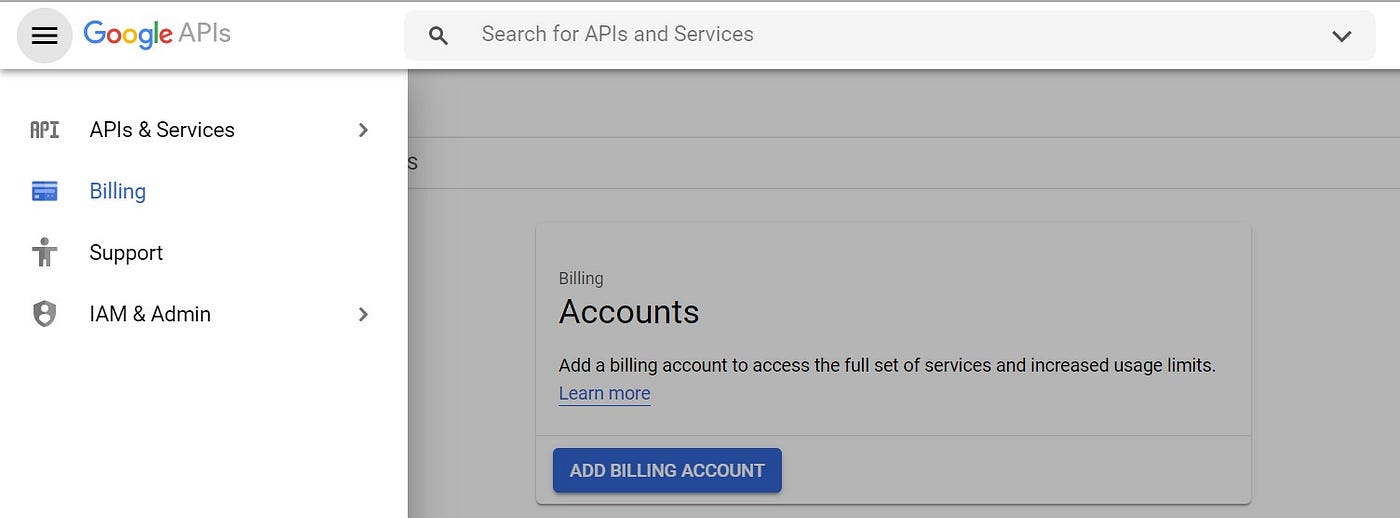
The next step is to create the billing account for Google to charge the usage of the API. For creating the billing account go to the menu on the top left of your Google Developer Account homepage, then Billing section and then Add Billing Account. Provide your billing details and choose Google Maps Platform ****to finalize the creation of the account.
A $200 Google Maps Platform credit is available each month so if you do more than 40,000 requests per month I’d suggest you to check the pricing details at this link (consider that one request means getting both latitude and longitude for one location).
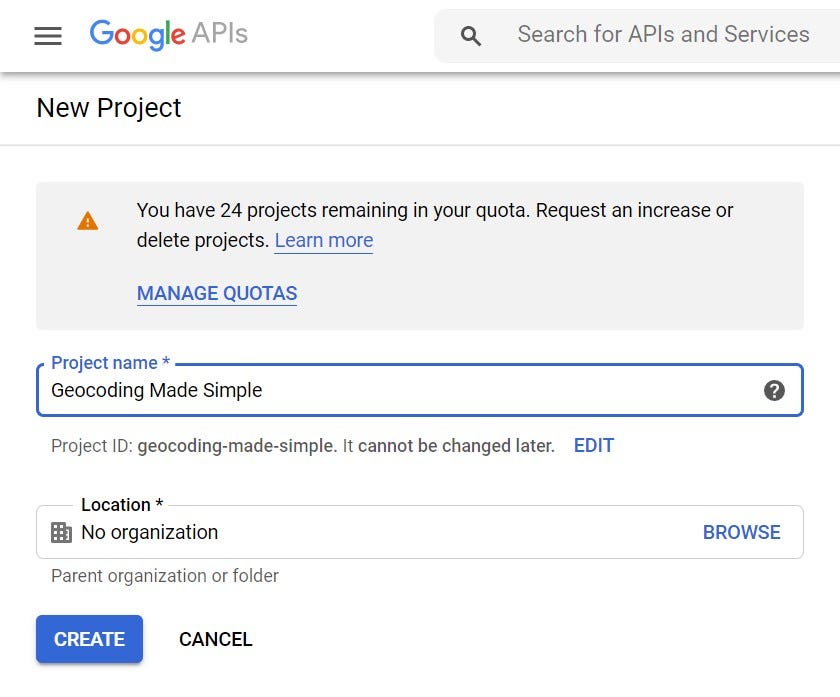
We also need to create a new project. Click on Select Project on the top bar and then New Project on the top left of the window.
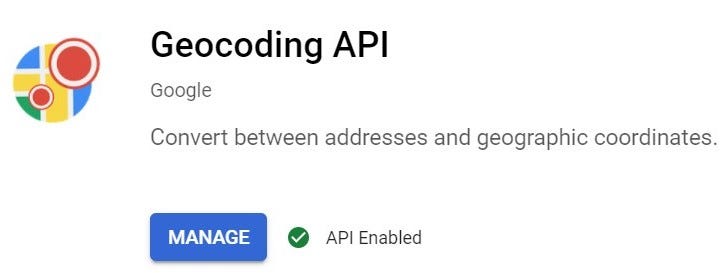
Now that we have our billing account and project we need to enable the API for the project. Access the project that you have just created and click on Enable APIs and Services. Search for Geocoding API and click on Enable.
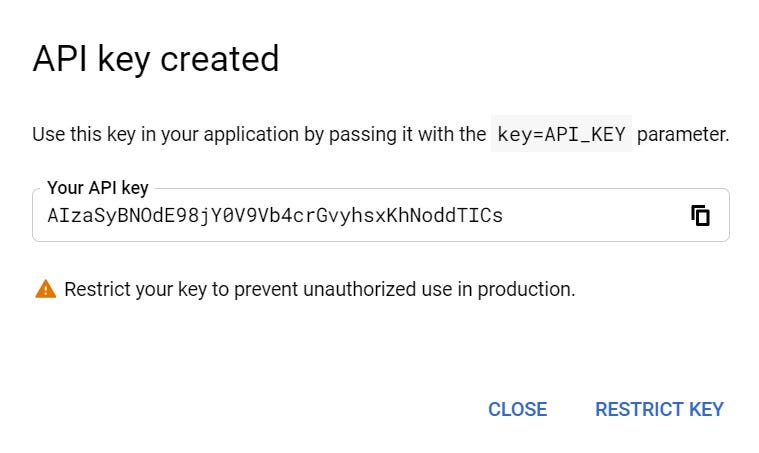
The last thing we need to do is creating the API key and to do so we just need to go to the Credentials tab, click on Create Credentials and then API Key. Copy the API Key since we are going to use it in the next steps.
2. Import the Libraries
Let’s now open our coding environment and import the required libraries. We are going to use Pandas and GoogleMaps.
3. Add the API Key
We now add the API Key that we created at the end of step 1 as a variable in our code.
4. Get our Sample Data
Then we need to get our data. For the purpose of this exercise, I created a csv file that simply has a list of 10 locations (the address of my 5 favourite bars in London plus other 5 random locations).
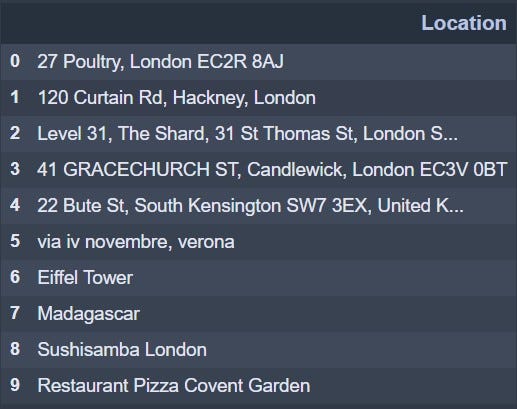
What we want as an output is the Latitude and Longitude of all the locations and this is why I will also create two new columns to store this information.
Geocoding with 10 Lines of Code
Now that we have everything we need, we can run the 10 lines of code which will retrieve the geocoding information for the sample locations and store the results in the two columns that we have just created.
To cross-check our result I created two columns and manually inserted the correct latitude and longitude for the 10 locations. As you can see the result we got is pretty accurate.
Press enter or click to view image in full size
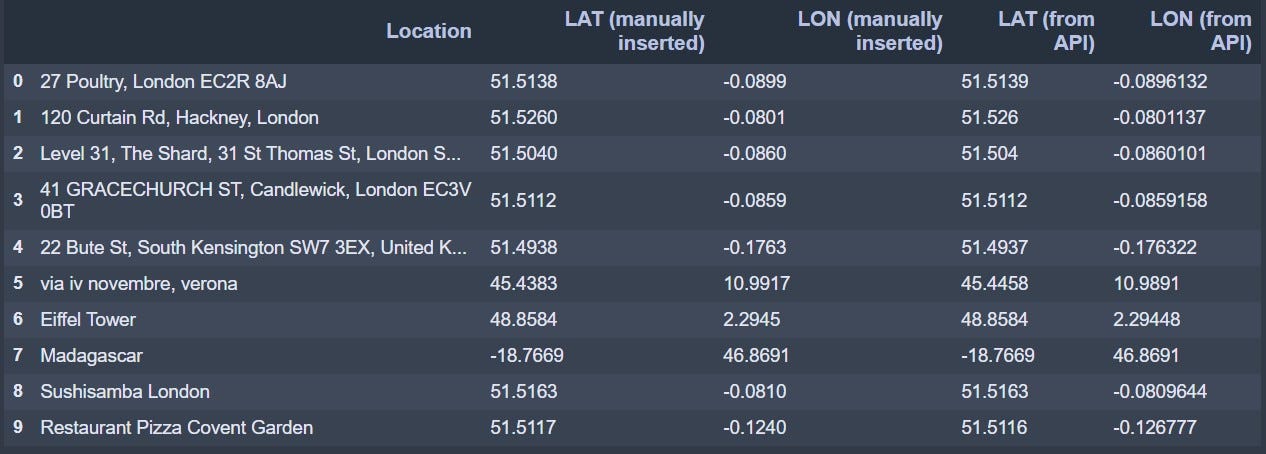
What I really like about this API is that the address or location does not have to have a specific format. As you may have noticed, in the sample data I have used different formats in the location column. I’ve added locations with no ZIP Code, no street number, only upper case characters and even roman numerals. I’ve also tried to detect points of interest, countries, names of restaurants and a generic pizza place in a London square, and the result is still satisfying.
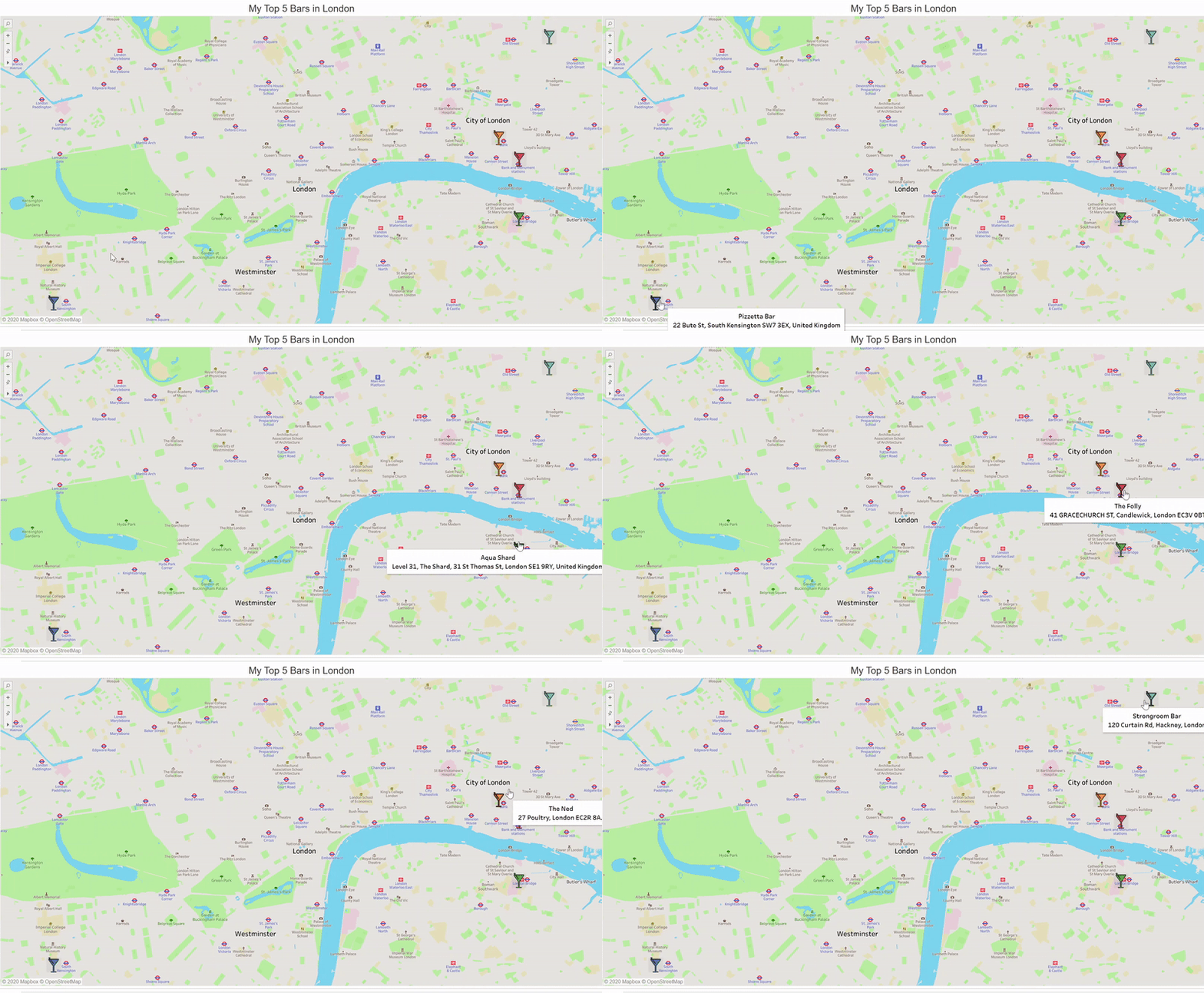
Now that we have all the geocoding information, let’s put this exercise into practice. Using Tableau we can create a simple Map of my Top 5 Bars in London, the ones we have in our sample data file.
And there you go, you now have a simple map that was created combining Python, Google API and Tableau.
Press enter or click to view image in full size
Conclusion
I hope that this article clearly shows how easy it is to get geocoding information using Google API.
When it comes to data visualisation, everyone loves a map. More exciting than a chart and easier than an infographic. Therefore I hope that this method will help you to visualise your geographical data and leverage on your insights.
Please do reach out to me with all the suggestions and comments you may have.
Thanks for reading!